
Guide
How to use MakaTools
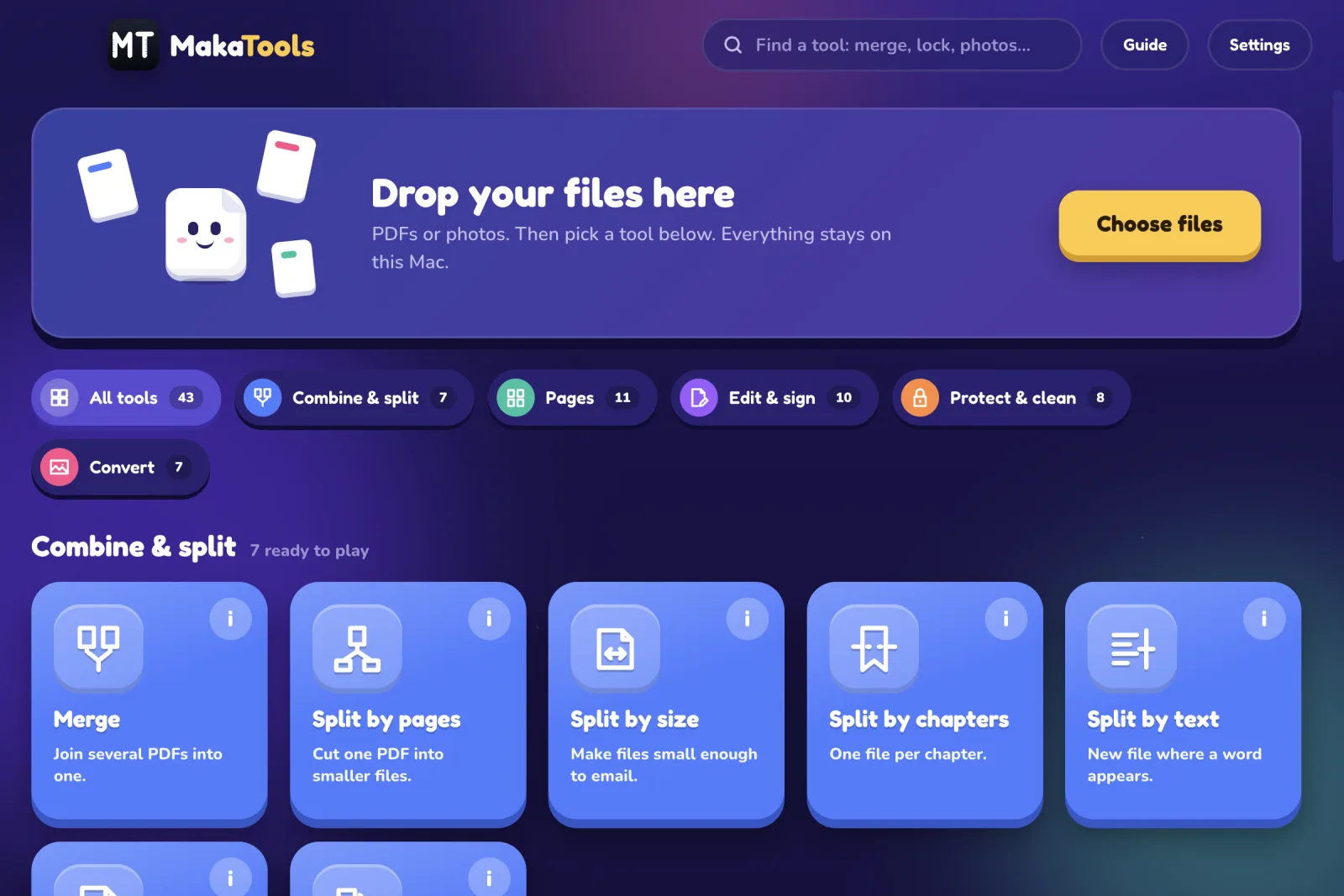
The short version: drop files, pick a tool, press the big button. Below are the tools people use most. Inside the app, every tool also has an (i) button with an animated explanation, and the Guide button opens the full illustrated guide.
First steps
- Drop files on the big box on the home screen, or press Choose files. The tools that can use them glow.
- Pick a tool. The (i) button explains it with an animation and three steps.
- Check the options and press the big yellow button. Choose where to save.
Other ways in
- Right-click a PDF in Finder → Open With → MakaTools, or drop a PDF on the Dock icon.
- Type in the search box (“merge”, “lock”, “photo”…) and press Enter.
Settings
- Where to save: ask every time, or save next to the original automatically. Originals are never replaced; new files get “(1)”, “(2)”… if a name is taken.
- Language for Make searchable, plus + More languages to download others.
Locked PDFs show a password box on their card: type the password and press Unlock.
Merge & split
Merge
Puts several PDFs together into one file, in the order you choose. Links, bookmarks and fillable fields keep working.
- Drop two or more PDFs.
- Drag the cards to set the order. Optionally type which pages to take from each file; leave it empty for the whole file.
- Press Merge! and choose where to save.
Printing double-sided? Turn on “blank page after odd files”. You can also add a clickable contents page.
Split by pages, size, chapters or text
Split by pages cuts every few pages or after the pages you choose. Split by size makes parts small enough to email. Split by chapters makes one file per bookmark. Split by text starts a new file where a word appears. Each new file keeps its links, bookmarks and form fields.
Pages
Organize pages
Shows every page as a big thumbnail, even from several PDFs. Drag to reorder; use the buttons on a card to turn, copy or remove it; Add blank page puts an empty page after the selected card. Press Save pages!.
View PDF
Read a PDF, zoom with + / − or a pinch, and find words with ⌘F (capitals and accents are ignored).

Remove blank pages
Drops the empty backs a scanner adds and separator sheets. Scanner dust does not count as content; a single line of text does. Pick Careful, Normal or Strong.
Also here: Extract, Delete, Rotate, Crop, Resize pages, Pages per sheet and Split down the middle for book scans.
Edit, fill & sign
Edit PDF
Pick a tool in the toolbar, then click or drag on the page: edit existing lines of text, add text, pictures, boxes, circles, lines, arrows, highlights, ticks, crosses, links and notes. Select something and press Delete to remove it. Undo is there when you need it.
White-out only covers. The text underneath can still be found. To really remove information, use Redact: it deletes the letters, image pixels and comments under the area from the file itself.
Fill & sign
Fillable boxes are highlighted: click and type. Press Signature to draw or type it, then drag it into place. Turn on Lock answers before sending so nobody can change them. Your signature is not stored anywhere: draw it each time.
More
Create form adds fillable boxes, checkboxes and dropdowns. Clickable links turns written web and e-mail addresses into links. Watermark, Page numbers, Header & footer and Bates numbering stamp text on every page.
Protect & compress
Add password
Locks the PDF with AES-256 encryption. You can also stop others from printing, copying or editing it. Write the password down: without it the file cannot be opened.
Compress
Shrinks oversized pictures; text, links and forms stay exactly the same. Medium suits most files; Strong makes photos softer but text always stays sharp. The result shows how much smaller it got.
Also here: Remove password (when you know it), Black & white, Flatten, Remove comments, Straighten scans and Repair.
OCR & convert
Make searchable (OCR)
Reads the words in scanned pages so you can search, select and copy them. The page looks exactly the same. Choose the language of the document; six are built in and about 37 more can be downloaded from Settings. Pages that already have text are skipped. Big files take a minute or two.
PDF to Word and PDF to Excel
PDF to Word makes an editable .docx with paragraphs, headings, bold, italic and pictures; complex layouts become simple flowing text. PDF to Excel pulls tables into .xlsx (one sheet per page) or CSV, with numbers you can add up. For numbers like 1.234,56 choose “comma” as the decimal sign. Scans? Run Make searchable first.
Also here: PDF to images, Photos to PDF, PDF to text and Save pictures.
Print on paper
Prepares a PDF for real paper so nothing gets cut: every page is fitted inside the area your printer can reach, turned the right way and centred. Big drawings can print at real size as a poster over several sheets. Press Make print-ready!, then Print… next to the result to send it to any printer of your Mac.
Problems and limits
| Problem | Fix |
|---|---|
| “MakaTools can’t be opened” or “Move to Bin” | See Install and open. |
| “A password is required” | Type the password on the file card and press Unlock. |
| “Not enough free memory” | Close other apps; very large files need more memory. |
| OCR language missing | Settings → + More languages → Download. |
| Edit text or Split by text finds nothing | The PDF is a scan: run Make searchable first. |
| A result looks wrong | The original is untouched: delete the result and try other options. |
Good to know
- Apple Silicon Macs only (M1 or newer).
- Edit text writes the new line in Helvetica, so it may not match an unusual original font.
- PDF to Word turns complex layouts into simple flowing text.
- Forms using dynamic XFA can only be written on with Add text.
Guida
Come si usa MakaTools
In breve: trascina i file, scegli uno strumento, premi il pulsante grande. Qui sotto trovi gli strumenti più usati. Nell'app ogni strumento ha anche un pulsante (i) con una spiegazione animata, e il pulsante Guide apre la guida illustrata completa. L'app è in inglese: i nomi di strumenti e pulsanti sono scritti come li vedi.
- Primi passi
- Unire e dividere
- Pagine
- Modificare, compilare, firmare
- Proteggere e comprimere
- OCR e conversioni
- Stampare
- Problemi
Primi passi
- Trascina i file sul riquadro grande della schermata principale, oppure premi Choose files. Gli strumenti che possono usarli si illuminano.
- Scegli uno strumento. Il pulsante (i) lo spiega con un'animazione e tre passaggi.
- Controlla le opzioni e premi il grande pulsante giallo. Scegli dove salvare.
Altri modi per iniziare
- Tasto destro su un PDF nel Finder → Apri con → MakaTools, oppure trascina un PDF sull'icona nel Dock.
- Scrivi nella ricerca (“merge”, “lock”, “photo”…) e premi Invio.
Impostazioni (Settings)
- Where to save: chiedi ogni volta, oppure salva in automatico accanto all'originale. Gli originali non vengono mai sostituiti; se un nome è già preso il nuovo file diventa “(1)”, “(2)”…
- Language for Make searchable, più + More languages per scaricarne altre.
I PDF protetti mostrano un campo password sulla loro scheda: scrivi la password e premi Unlock.
Unire e dividere
Merge
Mette insieme più PDF in un solo file, nell'ordine che scegli. Link, segnalibri e campi compilabili continuano a funzionare.
- Trascina due o più PDF.
- Trascina le schede per scegliere l'ordine. Se vuoi, scrivi quali pagine prendere da ogni file; vuoto vuol dire tutto il file.
- Premi Merge! e scegli dove salvare.
Stampi fronte e retro? Attiva “blank page after odd files”. Puoi anche aggiungere un indice cliccabile.
Dividere per pagine, peso, capitoli o testo
Split by pages taglia ogni tot pagine o dopo le pagine che scegli. Split by size crea parti abbastanza leggere da mandare per email. Split by chapters crea un file per segnalibro. Split by text inizia un nuovo file dove compare una parola. Ogni nuovo file tiene link, segnalibri e campi dei moduli.
Pagine
Organize pages
Mostra ogni pagina come una grande miniatura, anche da più PDF. Trascina per riordinare; con i pulsanti sulla scheda la ruoti, la copi o la togli; Add blank page aggiunge una pagina vuota dopo la scheda scelta. Premi Save pages!.
View PDF
Leggi un PDF, ingrandisci con + / − o con le dita, e cerca parole con ⌘F (maiuscole e accenti non contano).
Remove blank pages
Toglie i retri vuoti che aggiunge lo scanner e i fogli separatori. La polvere dello scanner non conta come contenuto; una sola riga di testo sì. Scegli Careful, Normal o Strong.
In questa famiglia anche: estrarre, eliminare, ruotare, ritagliare, ridimensionare, più pagine per foglio e Split down the middle per le scansioni dei libri.
Modificare, compilare, firmare
Edit PDF
Scegli uno strumento nella barra, poi fai clic o trascina sulla pagina: modifica righe di testo esistenti, aggiungi testo, immagini, rettangoli, cerchi, linee, frecce, evidenziature, spunte, croci, link e note. Seleziona qualcosa e premi Elimina per toglierlo. C'è anche Annulla.
White-out copre soltanto. Il testo sotto si può ancora trovare. Per eliminare davvero un'informazione usa Redact: cancella dal file lettere, pixel e commenti che stanno sotto.
Fill & sign
I campi compilabili sono evidenziati: fai clic e scrivi. Premi Signature per disegnare o scrivere la firma, poi trascinala al suo posto. Attiva Lock answers prima di inviare, così nessuno può cambiare le risposte. La firma non viene salvata da nessuna parte: la disegni ogni volta.
Altro
Create form aggiunge campi, caselle e menu a tendina. Clickable links rende cliccabili gli indirizzi web e email scritti nel PDF. Watermark, Page numbers, Header & footer e Bates numbering stampano testo su ogni pagina.
Proteggere e comprimere
Add password
Protegge il PDF con crittografia AES-256. Puoi anche impedire ad altri di stamparlo, copiarlo o modificarlo. Annota la password: senza, il file non si apre.
Compress
Riduce le immagini troppo grandi; testo, link e moduli restano identici. Medium va bene quasi sempre; Strong rende le foto più morbide ma il testo resta nitido. Il risultato mostra quanto è diventato più leggero.
In questa famiglia anche: togliere la password (se la conosci), bianco e nero, Flatten, togliere i commenti, raddrizzare le scansioni e riparare.
OCR e conversioni
Make searchable (OCR)
Legge le parole nelle pagine scansionate, così puoi cercarle, selezionarle e copiarle. La pagina resta identica. Scegli la lingua del documento; sei sono incluse e circa 37 si scaricano dalle impostazioni. Le pagine che hanno già testo vengono saltate. I file grandi richiedono un minuto o due.
PDF to Word e PDF to Excel
PDF to Word crea un .docx modificabile con paragrafi, titoli, grassetto, corsivo e immagini; le impaginazioni complesse diventano testo semplice. PDF to Excel porta le tabelle in .xlsx (un foglio per pagina) o CSV, con numeri veri da sommare. Per numeri come 1.234,56 scegli “comma” come separatore decimale. Scansioni? Prima usa Make searchable.
In questa famiglia anche: PDF in immagini, foto in PDF, PDF in testo e salvare le immagini.
Stampare su carta
Print on paper prepara un PDF per la carta vera, così non si taglia niente: ogni pagina entra nell'area che la stampante raggiunge, girata nel verso giusto e centrata. I disegni grandi si possono stampare in scala reale come poster su più fogli. Premi Make print-ready!, poi Print… accanto al risultato per mandarlo a una qualsiasi stampante del Mac.
Problemi e limiti
| Problema | Soluzione |
|---|---|
| «Impossibile aprire MakaTools» o «Sposta nel Cestino» | Vedi Installa e apri. |
| «A password is required» | Scrivi la password sulla scheda del file e premi Unlock. |
| «Not enough free memory» | Chiudi altre app; i file molto grandi chiedono più memoria. |
| Manca una lingua OCR | Settings → + More languages → Download. |
| Edit text o Split by text non trovano niente | Il PDF è una scansione: prima usa Make searchable. |
| Il risultato non va bene | L'originale è intatto: elimina il risultato e prova altre opzioni. |
Da sapere
- Solo Mac con chip Apple (M1 o successivi).
- Edit text scrive la nuova riga in Helvetica, quindi può non somigliare a un font originale insolito.
- PDF to Word trasforma le impaginazioni complesse in testo semplice.
- Sui moduli XFA dinamici si può scrivere solo con Add text.